Scenes in one tap
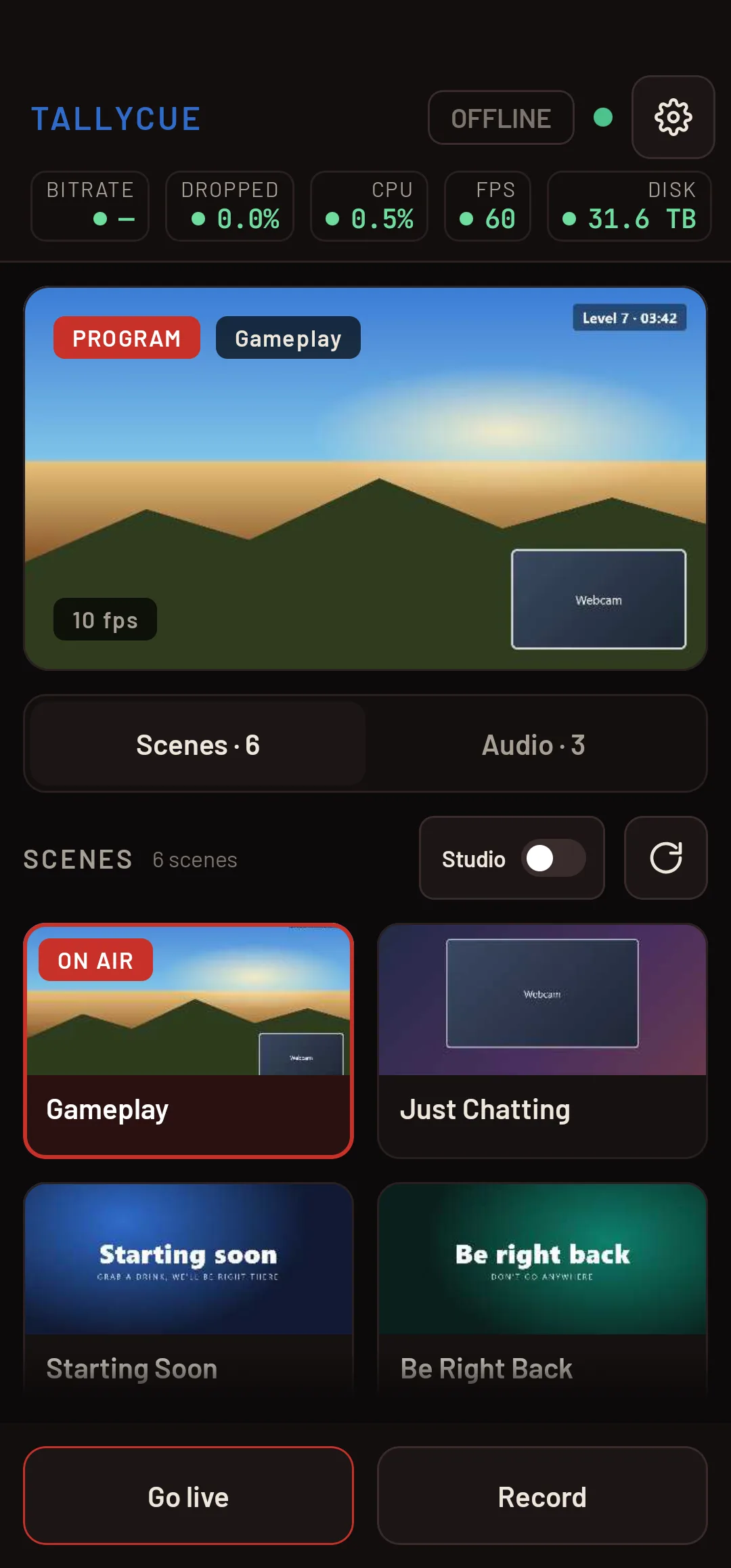
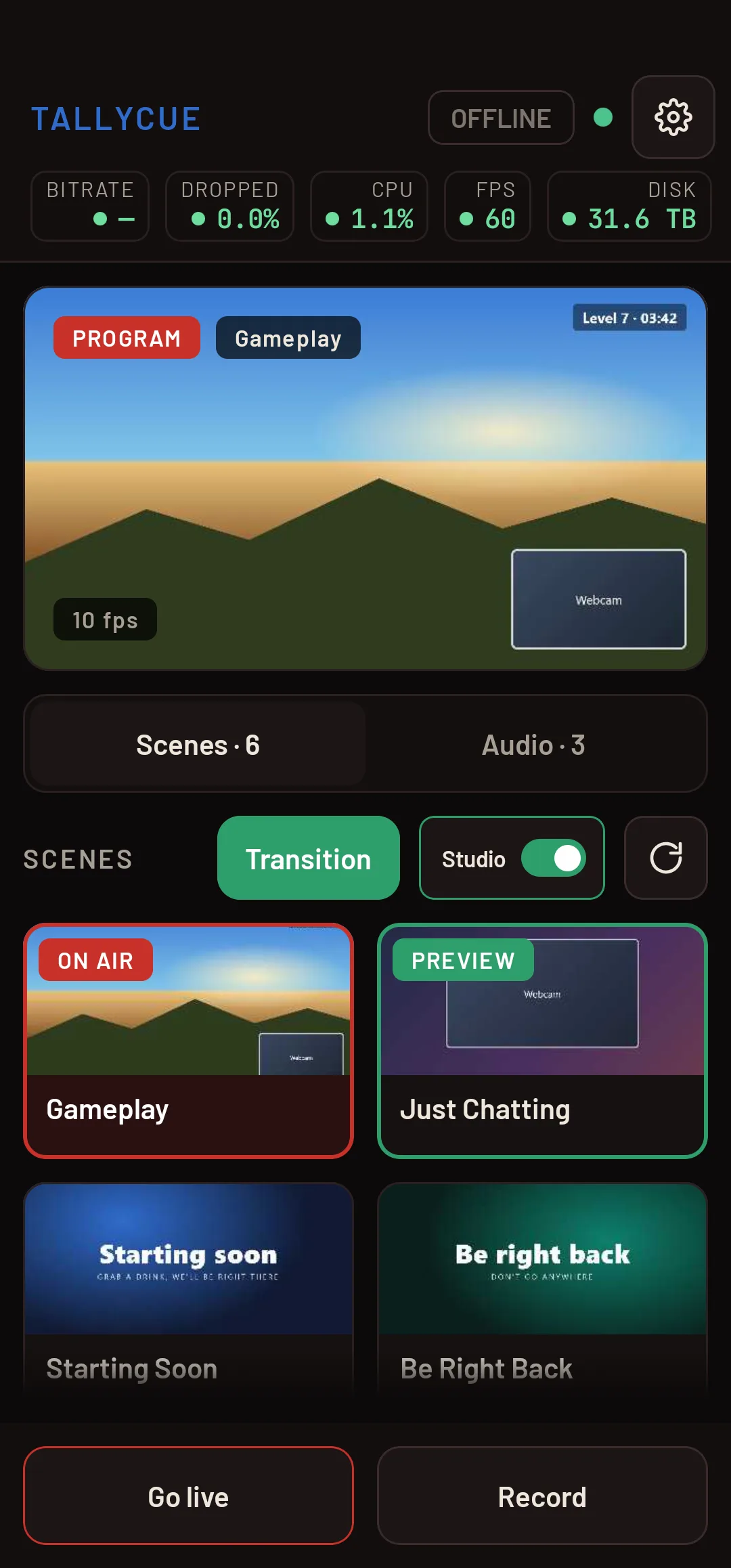
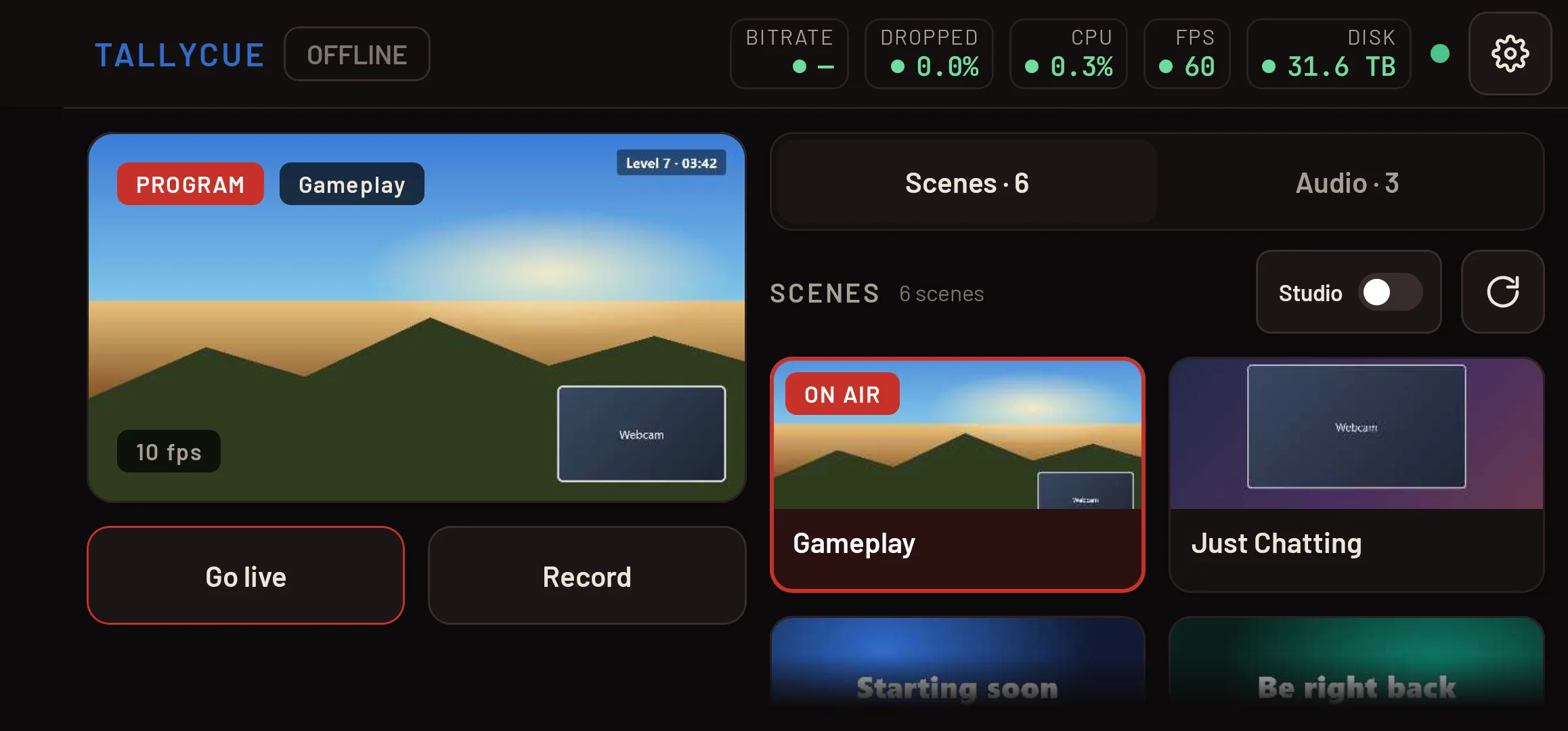
Every scene as a big tile, with the one on air clearly marked. Pro adds a studio mode switch with preview-then-transition.
Switch scenes in one tap, watch every audio source move, mute in a hurry and see stream health at a glance — from the tablet beside your keyboard or the phone in your pocket.
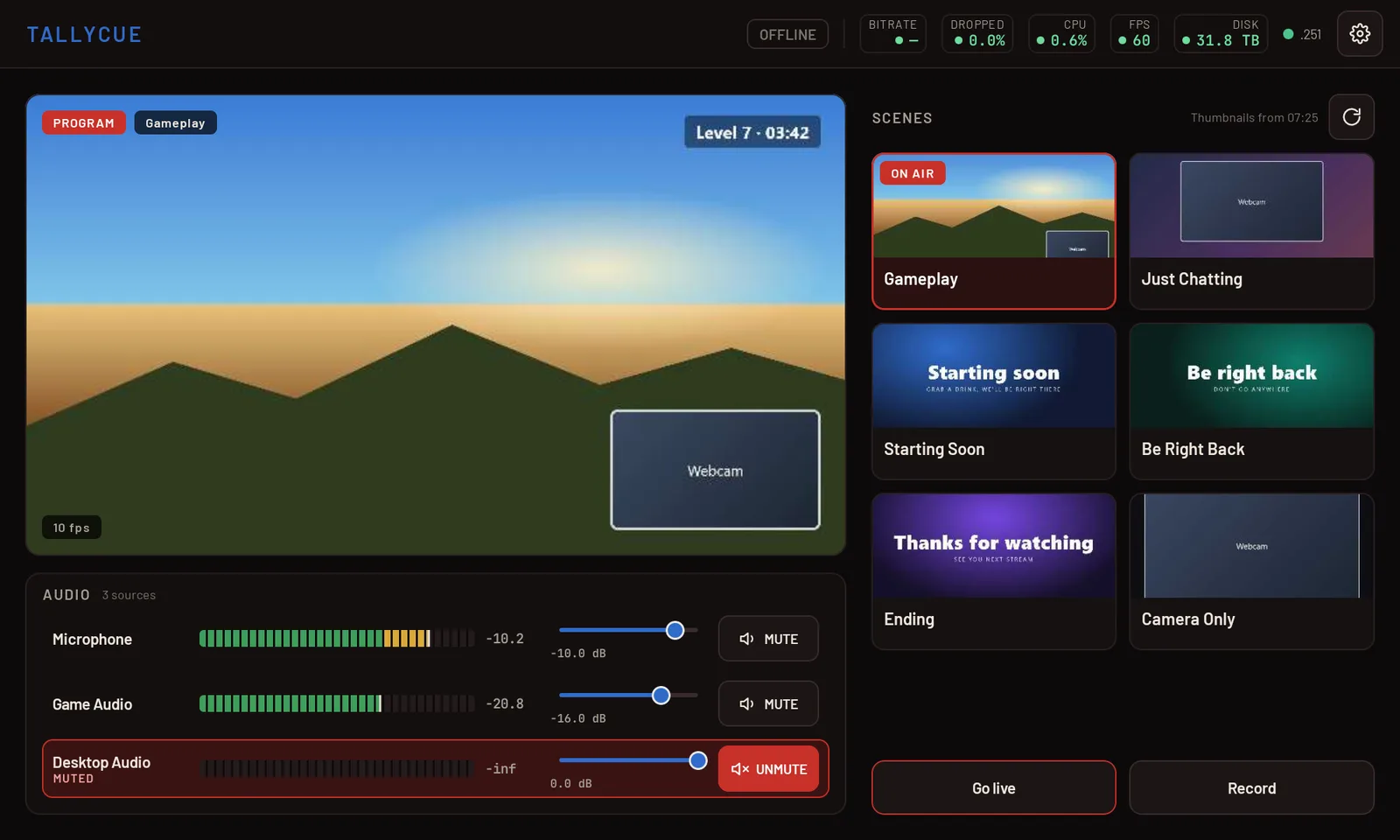
Designed for a tablet propped next to your setup, with a phone layout that works upright or sideways: big targets, clear states, nothing buried in menus.
Every scene as a big tile, with the one on air clearly marked. Pro adds a studio mode switch with preview-then-transition.
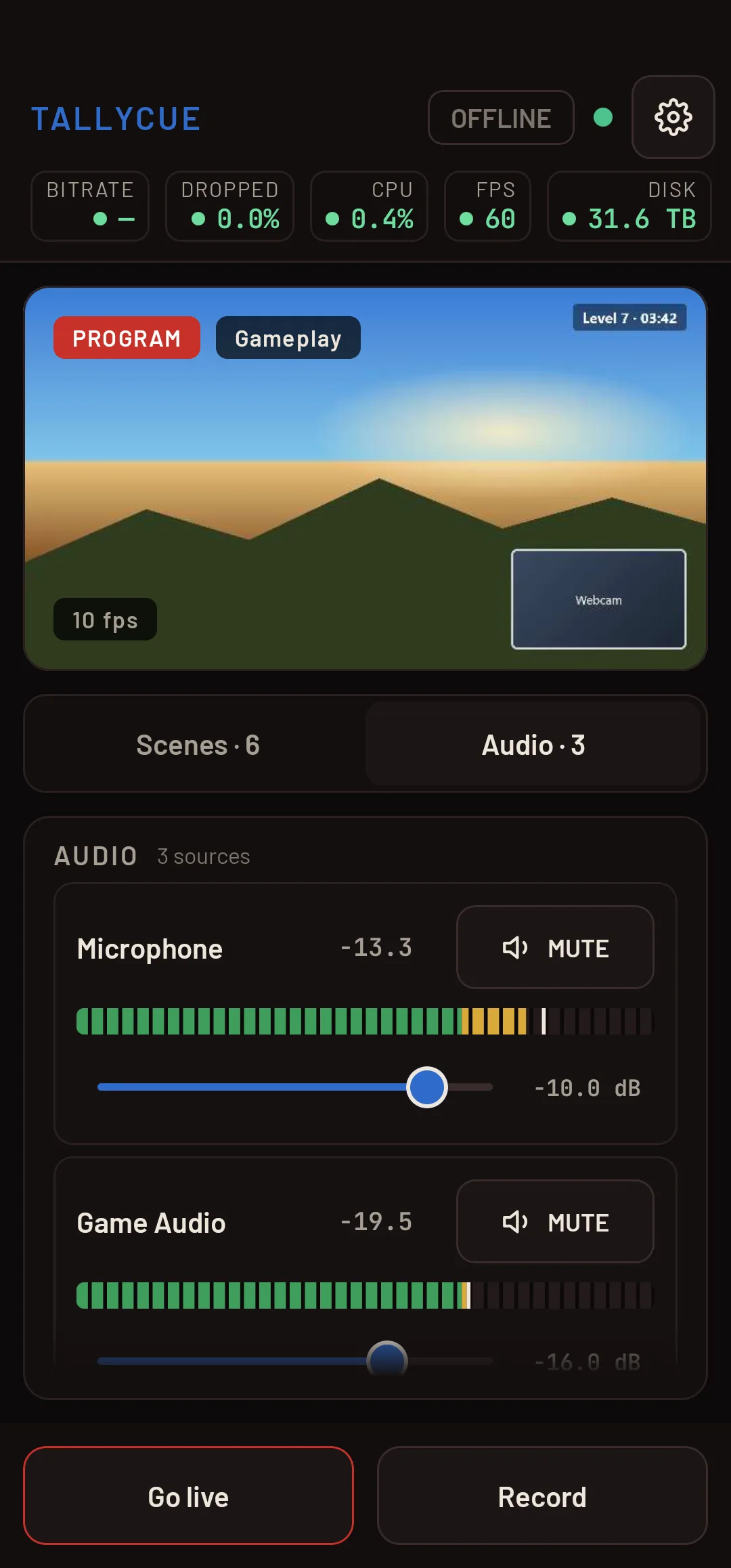
Live meters with peak hold for your mic, desktop and app audio. Muted sources turn unmistakably red.
Bitrate, dropped frames, CPU, FPS and recording space — green when fine, amber and red before it becomes a problem.
Going live, ending the stream and recording all ask for a second tap, so a stray touch never ends your broadcast.
Point your device at OBS's Connect Info and you're in. It reconnects on its own if the network blips.
The screen won't dim or lock while TallyCue is open, so your controls are always one glance away.
Real screenshots of the app, connected to OBS Studio.
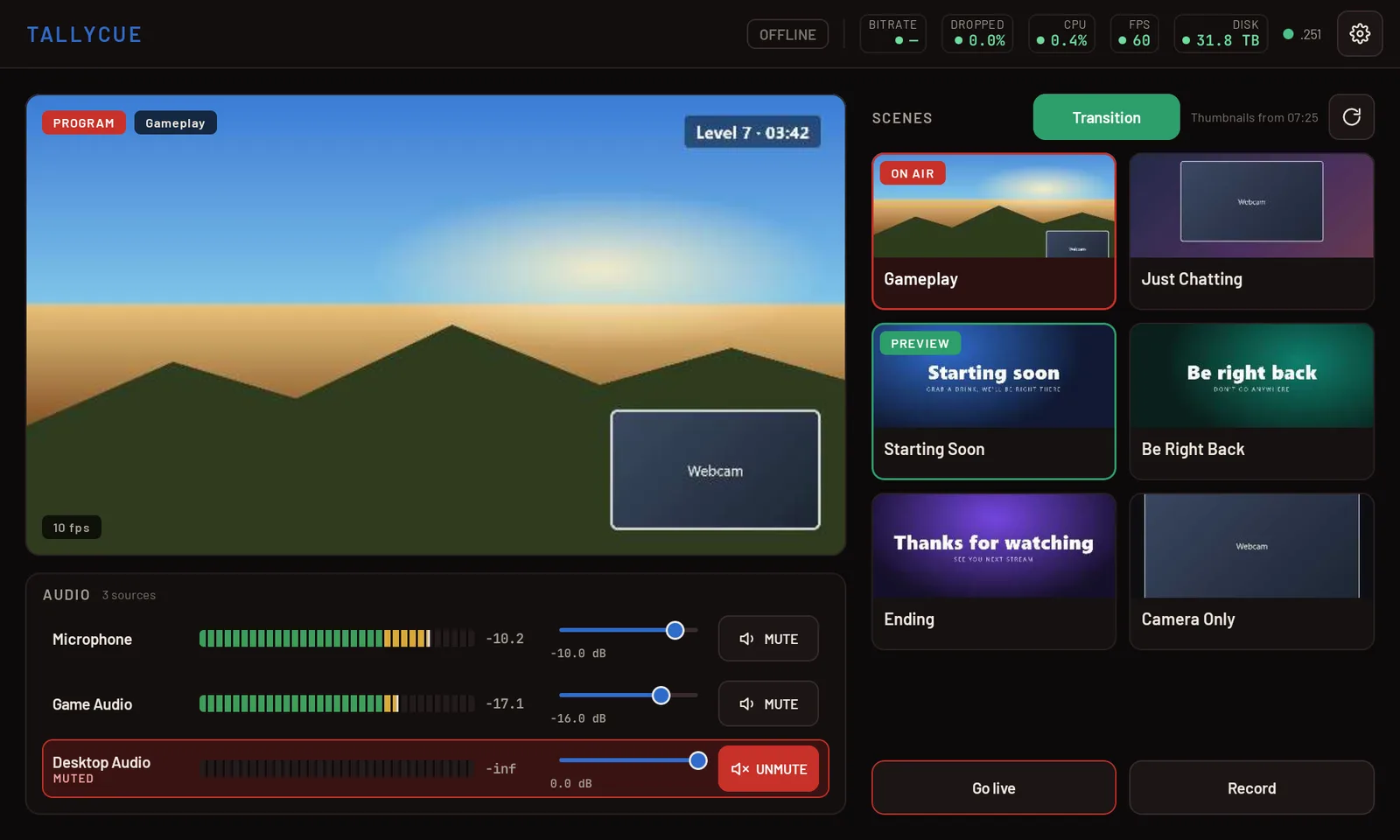
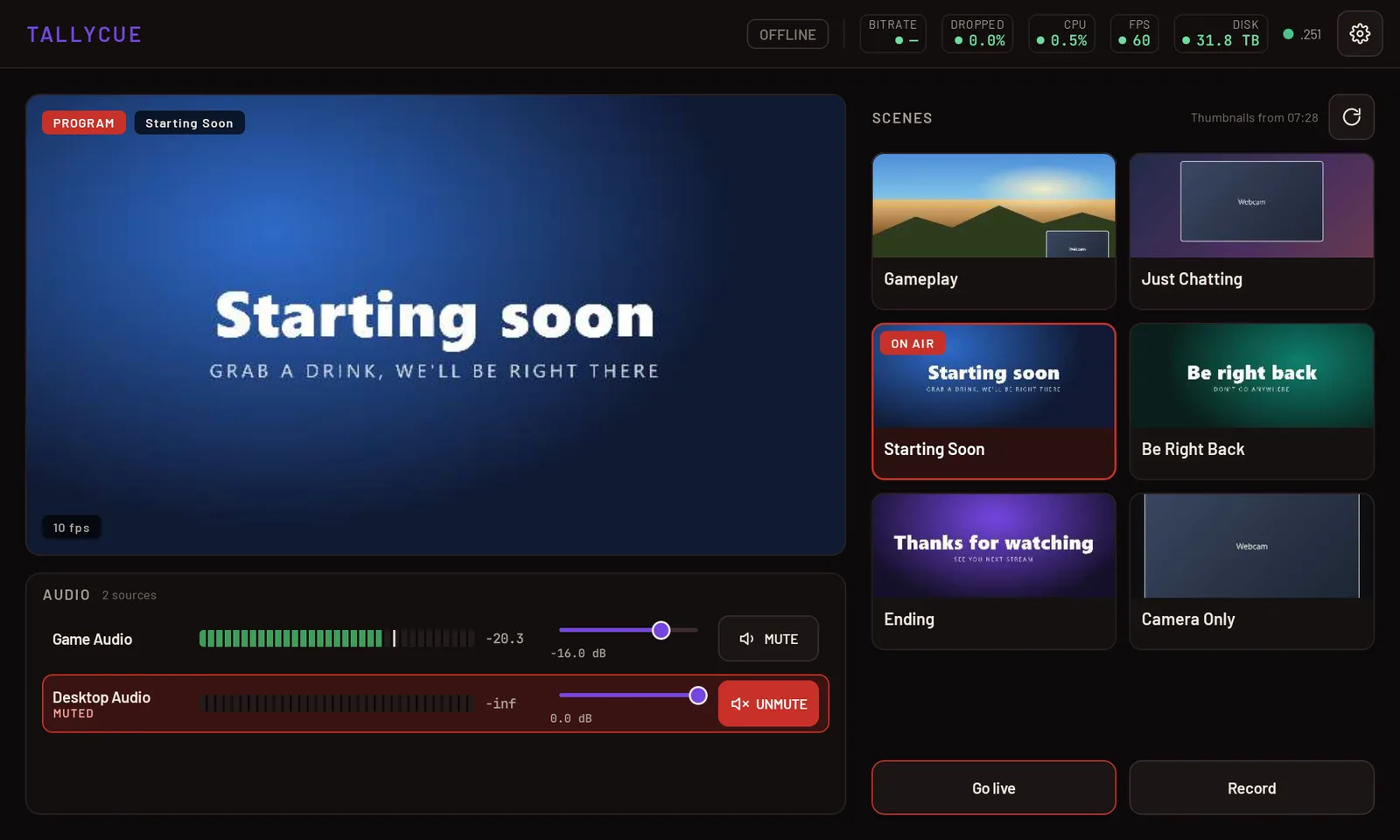
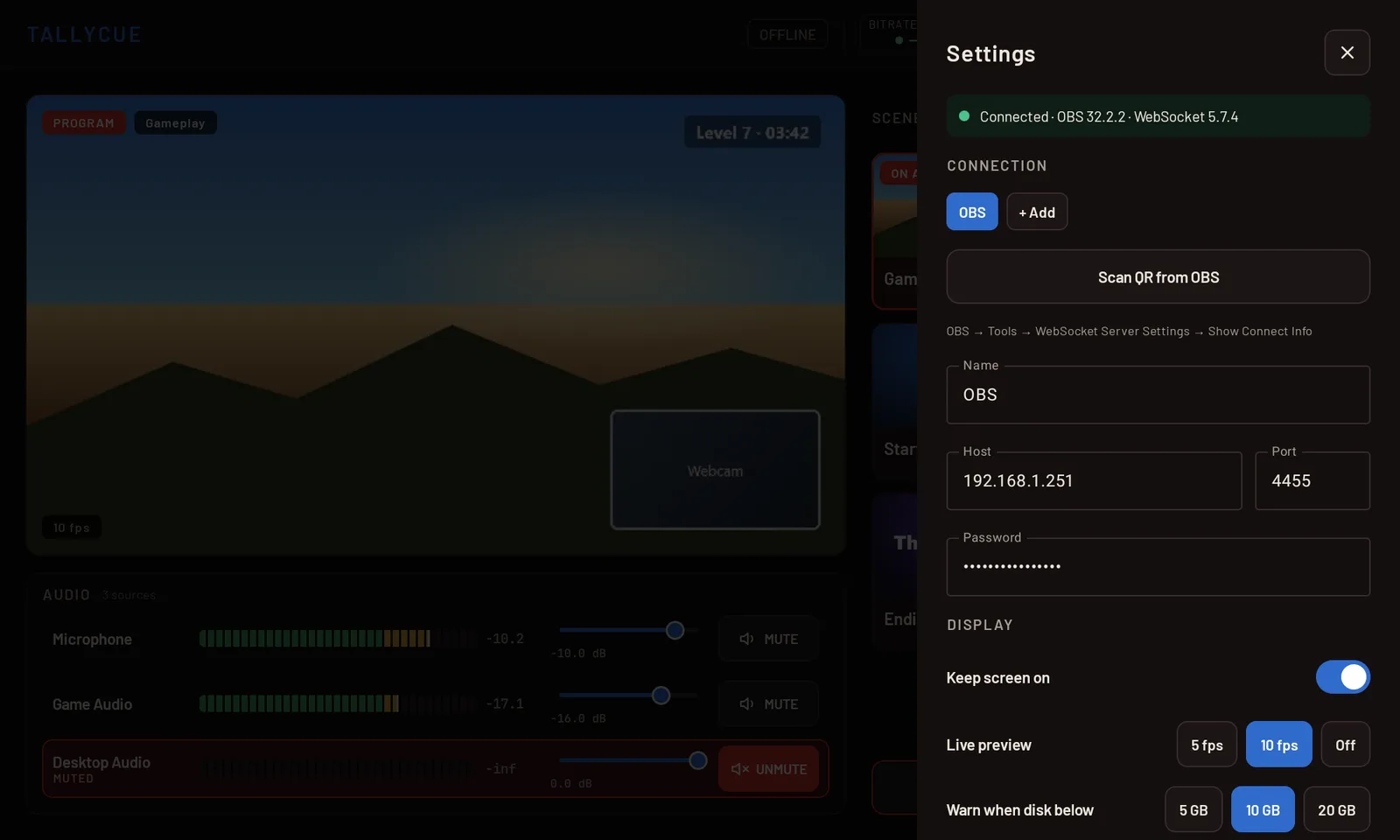
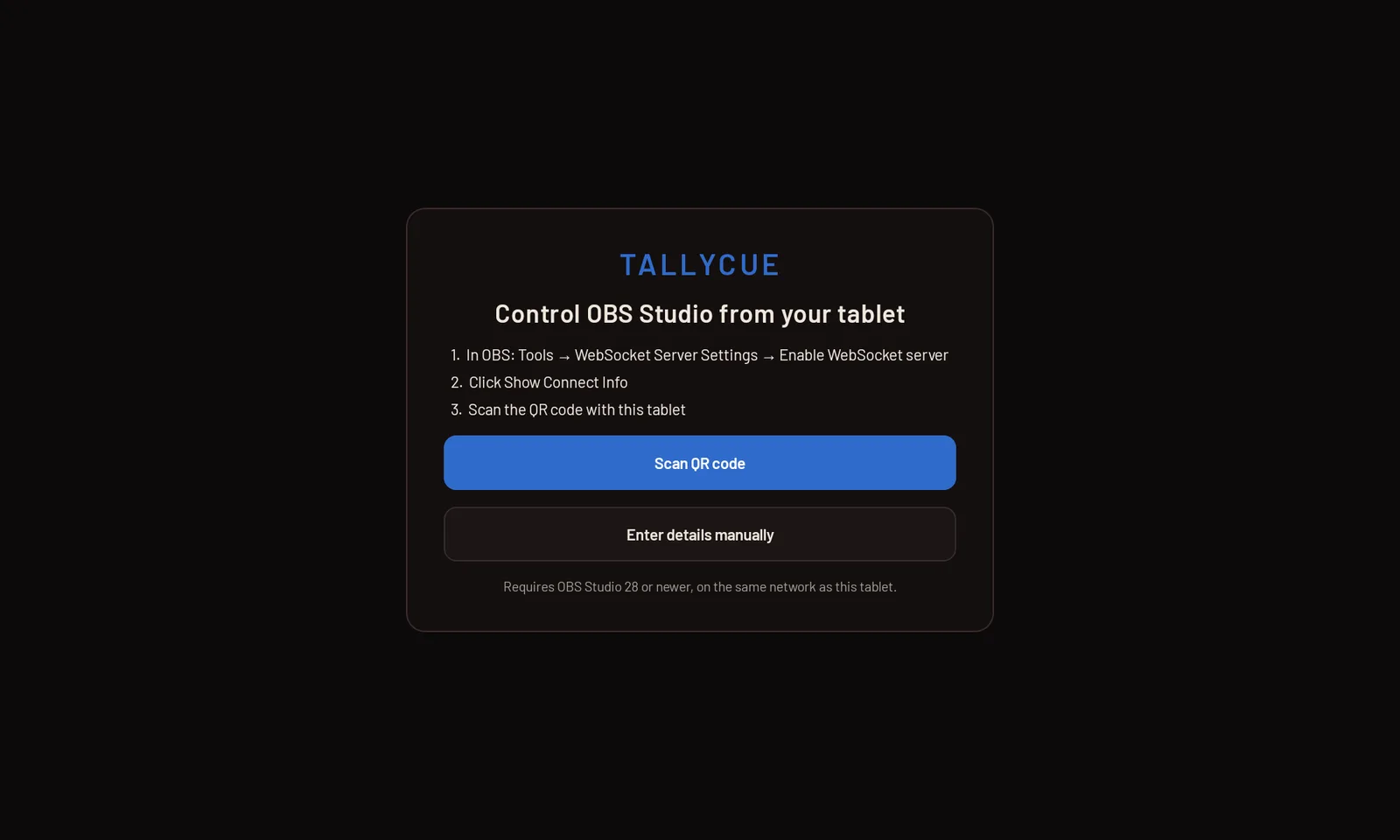
The same control room in your hand, upright or sideways.
The core controls are free with no time limit. Pro is a single in-app purchase — no subscription.
Everything you need to run a stream
For the full control-room view
TallyCue talks to OBS's built-in WebSocket server. There's nothing to install on your computer.
No accounts, no analytics, no ads. TallyCue only talks to OBS on your own network, and your OBS password is stored encrypted on your device. Read the privacy policy.